Changing the Image on Your Google Business Profile (GBP), Facebook (FB) or Vanity URL Virtual Sales Assistant (VSA) (Staff)
Last updated: June 12, 2026
The image in your Google Business Profile (GBP), Facebook (FB), or vanity URL Virtual Sales Assistant (VSA) can be customized to your favorite community photo.
Below is an example of an image already set up to display.
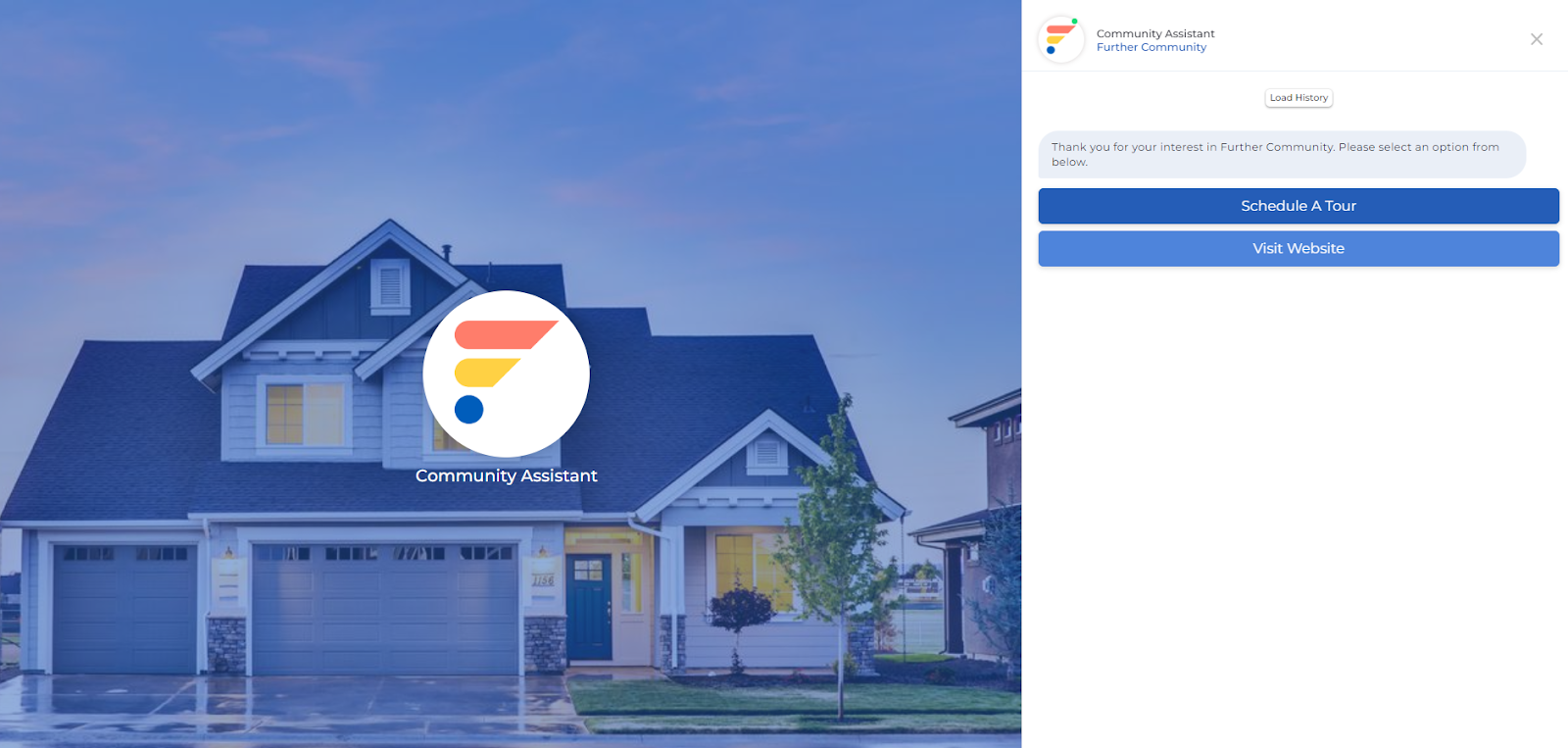
In this article, we’ll go over how to set or change an image for your GMB, FB, and vanity URL VSA.
If you would like to learn more about setting up a Google Business Profile (GBP), Facebook (FB), or vanity URL VSA, please see this article.
Note: Only corporate and regional users can adjust the images for communities.
Locate Community
The images tied to your community can be located under Communities in your Further Dashboard. For more information about how to find your community profiles, see the article here.
Select Image
Once you’ve opened the profile, navigate to the Images tab and make sure that you already have the desired image uploaded. For more information about adding or removing images from a community profile, see the article here.
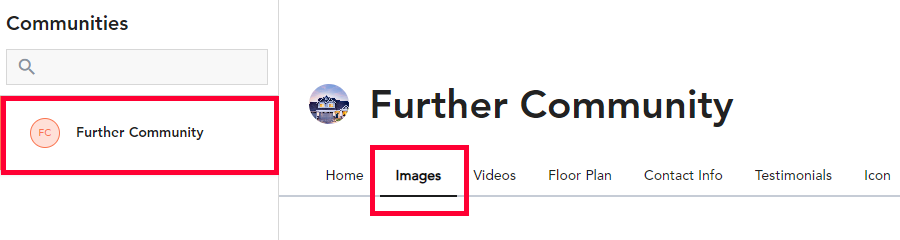
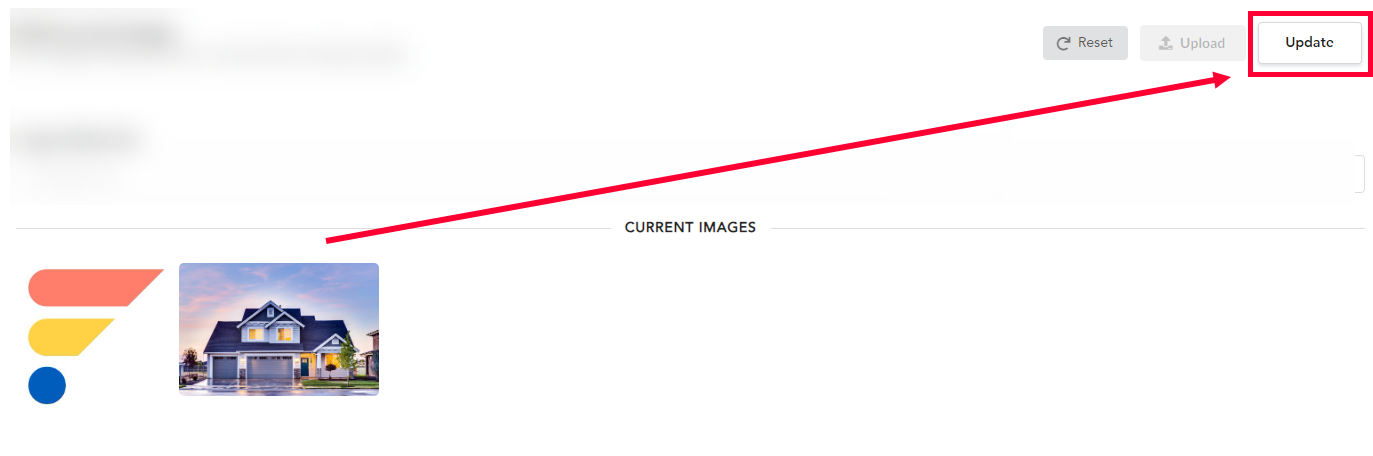
Scroll down to Current Images.
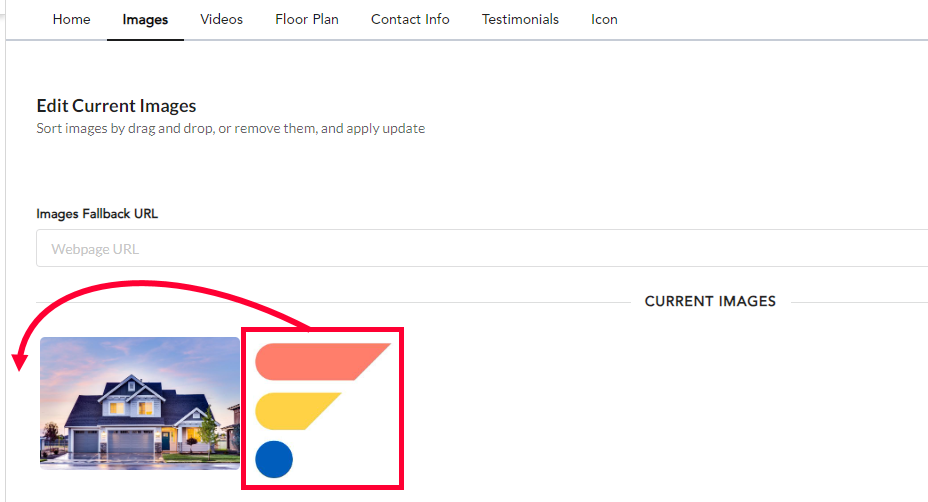
The order of your images is key. Whichever image is in the left-most spot, is what will display in your GMB, FB, or vanity URL VSA.

You can adjust the order of the images by clicking, dragging, and dropping them into the correct spot.
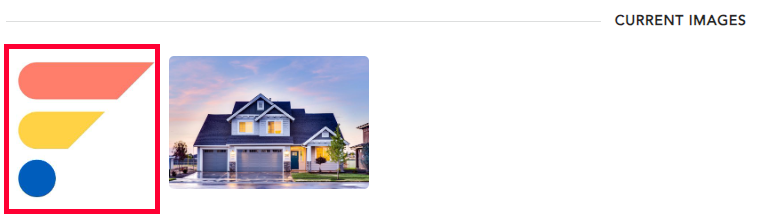
When you’re done, click Update in the top right.
Now it’s time to publish your changes.
Locate the flow associated with the community. For more information on how to find the correct flow, see the article here.
Once you have the flow open, simply click Publish Changes in the top right and all your changes will go live.
