How to Change the Image in your The Circle Icon in the VSA/CW (Staff)
Last updated: June 12, 2026
This article will go over how to change the three-image icon that appears for VSA and CW for a community.

Image Criteria
In order to use an image, the following criteria must be met:
- The icon must be one whole image.
- Image dimensions should be 95 x 95 when possible.
Set Up the Image
Note: If the image is provided by the client or CSM, make sure it meets the image criteria listed above.
Log into the Further Imgur account to upload the image with the credentials below:
URL: https://imgur.com/
Email: Kara@talkfurther.com
Password: 2023VSA@987
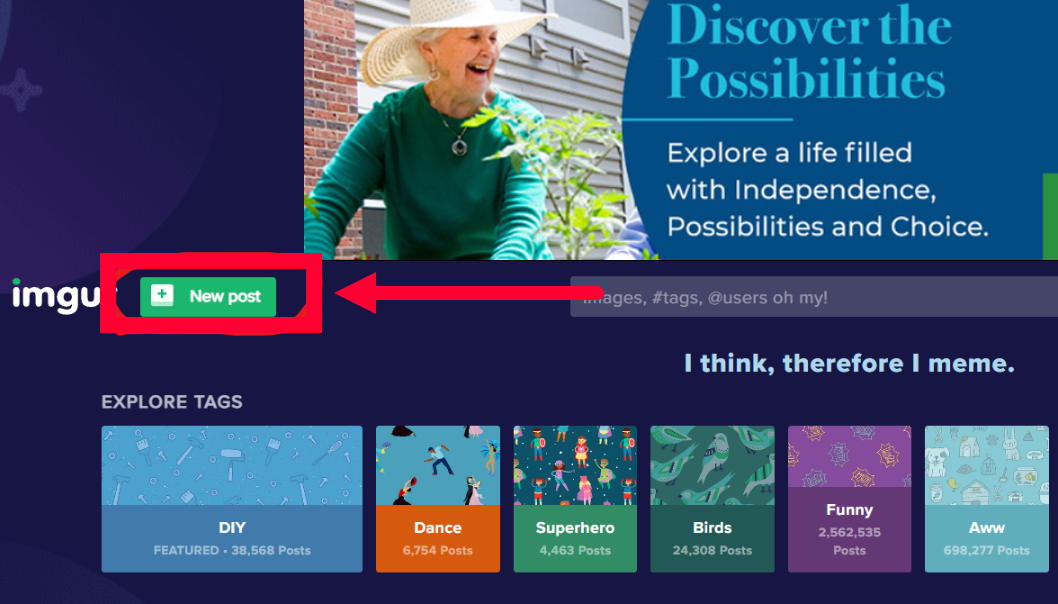
On Imgur, click New Post. Upload the image.
After uploading the image, right click and select Copy the URL.
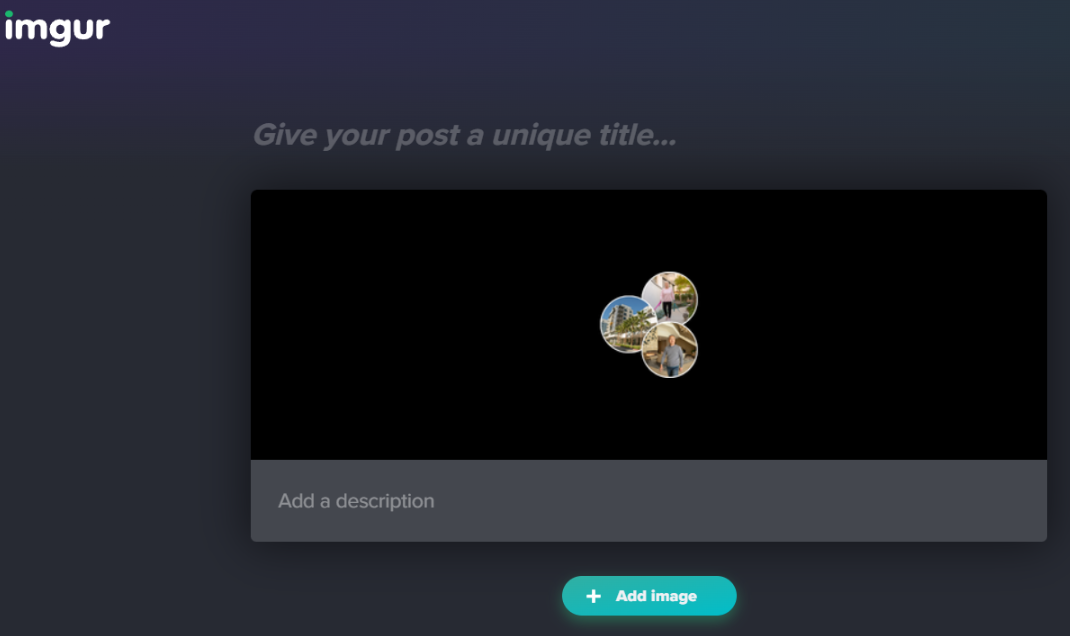
Take the image URL and use it to replace the {Image imgur link} text in the code below. After pasting the new link, copy all of the code below to use in the community.
/*--Change VSA Image--*/
var waitForElement = setInterval(function () {
try {
const newImage = "{Image imgur link}"
var VSA = document.querySelector("family-assets-chat");
if (!VSA) {
console.info("No VSA Loaded");
return;
}
var img = document.querySelector("family-assets-chat").shadowRoot.querySelector(".top-block > .right-side > img")
if (img) {
img.srcset = newImage
img.src = newImage;
}
} catch (error) {
console.error("Error", error);
}
}, 250);
Change Image in Further
Open the chat for the community that needs the image updated. Paste the Javascript you added the image URL to in the chat settings.
Save your changes and then Publish the chat.
Check the live VSA and CW to make sure the circle icon is updated.