Generate Campaign/Tracking Phone Numbers (Staff)
Last updated: June 12, 2026
Prerequisite: the Phone Assistant MUST be LIVE for Campaign Numbers to populate data in the Further Dashboard.
Generating numbers for a Campaign is a four-step process:
- Gather Information Needed
- Purchase Campaign Numbers
- Organize Campaign Numbers
- Send to Client
In this article, we’ll walk you through each step.
Gather Information Needed
Find out the following information from the client or the CSM:
- Community
- Campaign Name
- How many numbers should be purchased for this campaign?
To make it easier, you could send a chart like the one below:
| Community | Campaign Name | How many numbers should be purchased for this campaign? |
Purchase Campaign Numbers
Based on the information gathered in the previous step, you now need to purchase Campaign numbers.
Login to the Client Dashboard and click Advanced in the left menu.

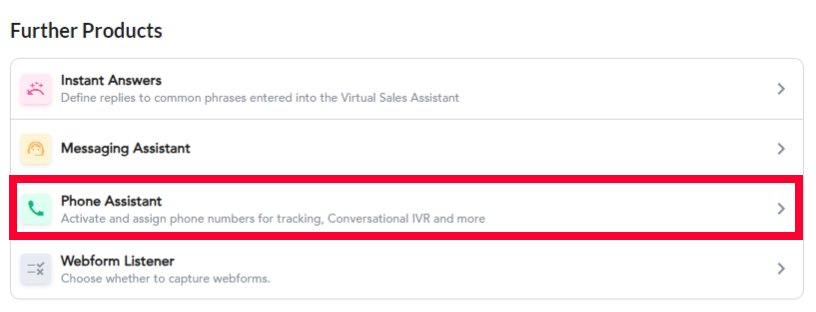
Under Further Products select Phone Assistant.
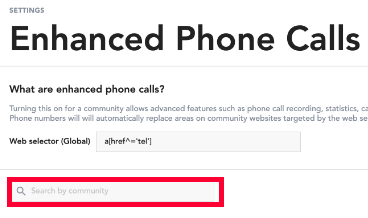
Use the search bar at the top to locate the desired community.
Click anywhere on the community bar between the name and On/Off.

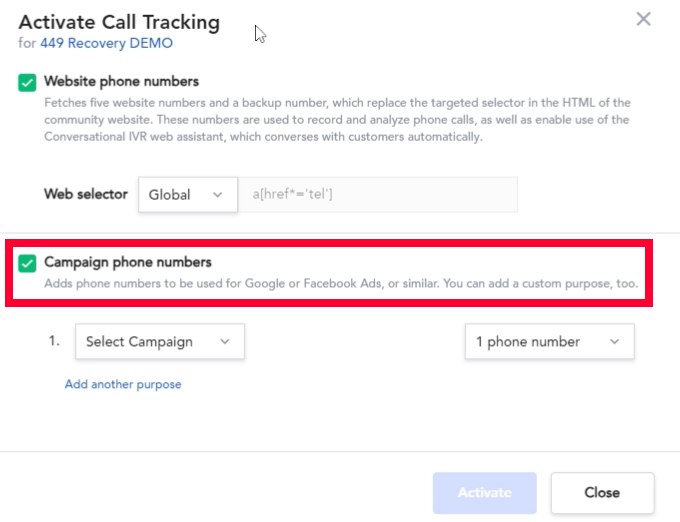
In the new window, check the box for Campaign phone numbers.
Underneath the Campaign numbers, click Add another purpose.
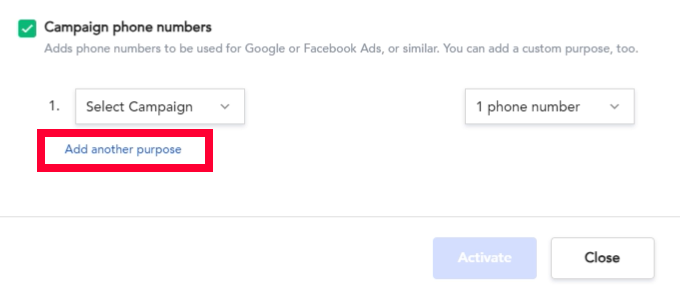
Fill out the relevant information, select how many phone numbers you need, and then click Save to add the new numbers.
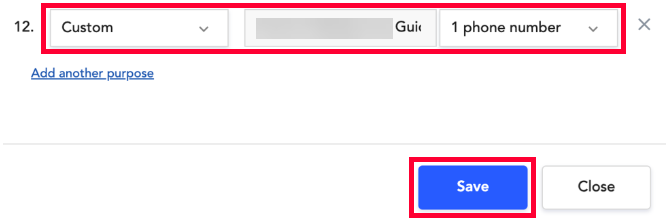
Look for the community, at first you will see a Synching phone data status.

When it's done the status will show as On.

QA Campaign Numbers
Once you have generated all of the Campaign numbers, make sure to QA them using Open Phone. For more information on Open Phone, see the article here.
Once you have tested that all of the Campaign numbers are working as expected, login to the Client Dashboard to ensure they are populating correctly.
Select All Conversations and search for the lead created. Review the Source and ensure it matched what you created.

Organize Campaign Numbers for Clients
Once you have QA’ed the numbers,, it’s time to send the completed list to your clients. Take the new numbers from under Campaign numbers and send them to your client in a table like the one below:
| Community | Campaign Name | Campaign Number |
| Revel Scottsdale | Print Advertising - Fountain Hills Times Newspaper | 602-878-9716 |
Send to Client or CSM
Take the table generated in the previous step and send it to the requesting client or CSM.