Editing Messaging Assistant Placeholders
Last updated: June 12, 2026
Messaging Assistant has default answers for prospect conversations. You can create custom answers for one or more communities to replace the default text. In this article, we’ll go over how.
Select Communities
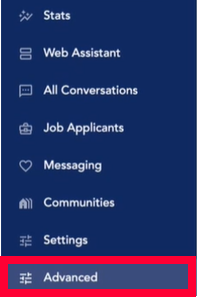
Click Advanced in the left menu.
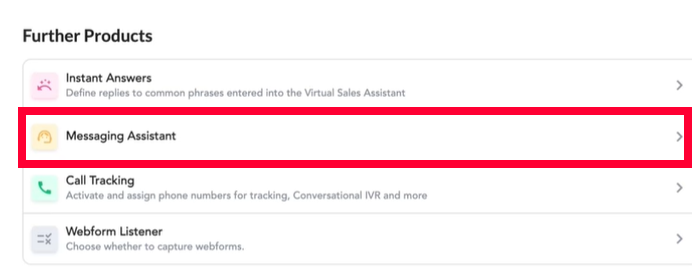
Under the Further Products section select Messaging Assistant.
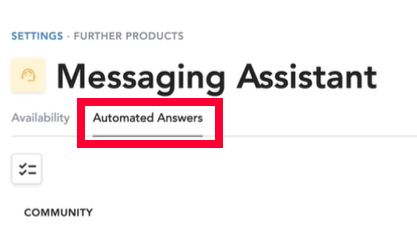
The Messaging Assistant page opens. Click the Automated Answers tab at the top.
You can use the search bar in the top right to look for a specific community by name.
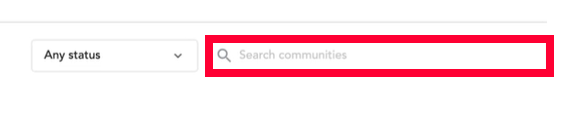
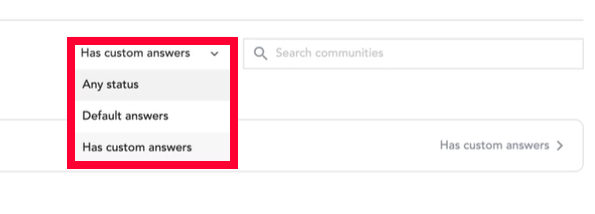
Or you can use the dropdown to filter communities by status. Communities can be either:
- Any status - Communities that use the default answers or custom answers.
- Default answers - Only communities still using the default answers.
- Has custom answers - Only communities that have at least one custom answer.
To edit one community, simply click on the Community Name.
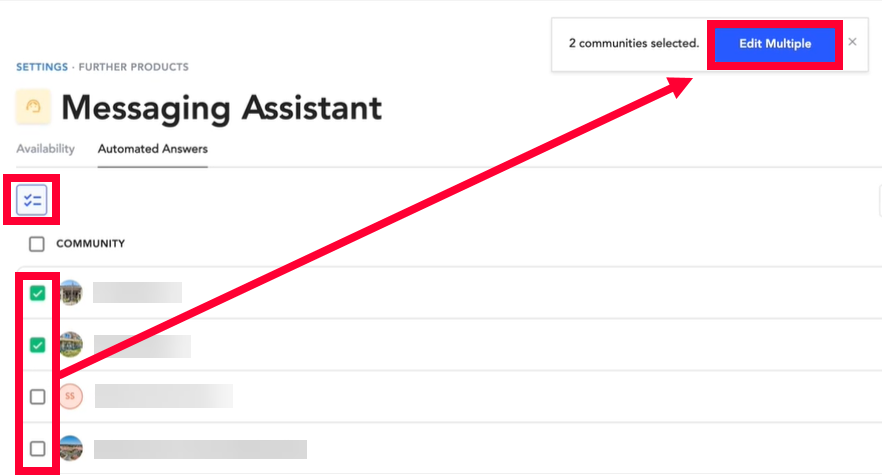
To edit multiple communities, click the checklist icon at the top. Use the checkmarks to select the communities you want to edit and click Edit Multiple at the top.
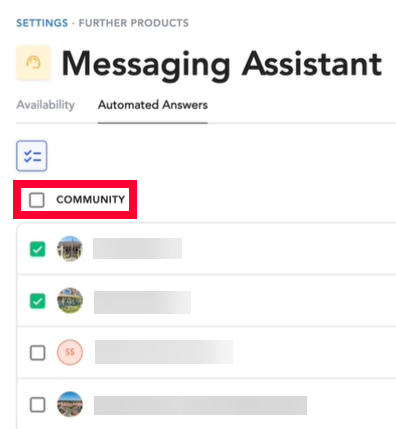
If you want to select all communities, click the Community checkbox at the top and then Edit Multiple.
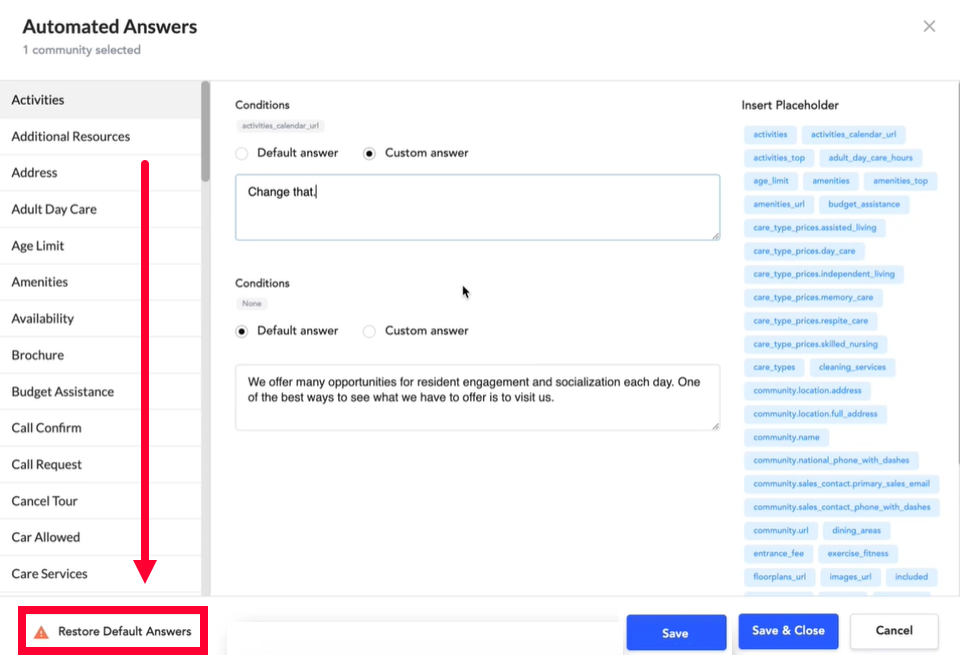
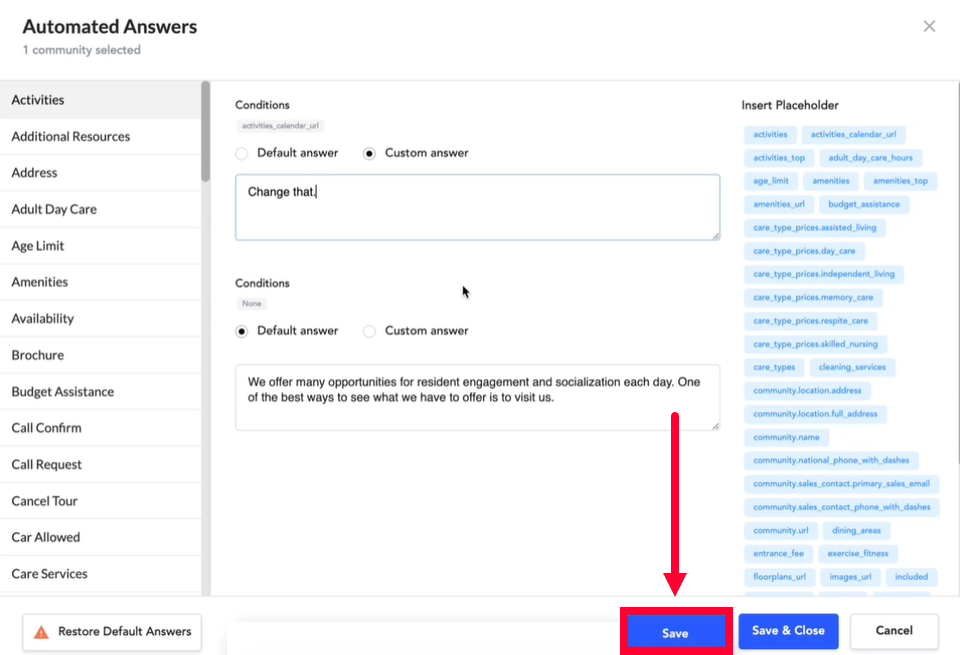
The Automated Answers window will open, this is where you can start to edit answers.
Edit Automated Answers
The left column contains a list of all the automated answers in Messaging Assistant. Click the answer you want to update.
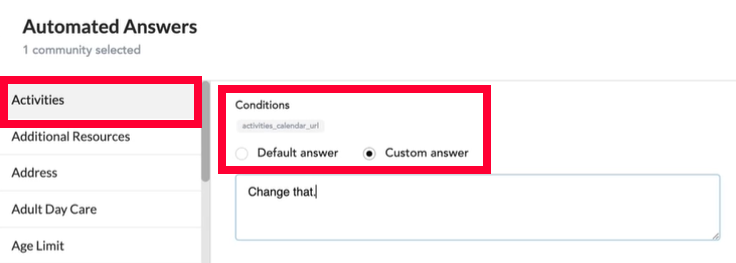
Under Conditions for an answer, you will see two options:
- Default answer - This will provide the standard message for the answer and cannot be edited.
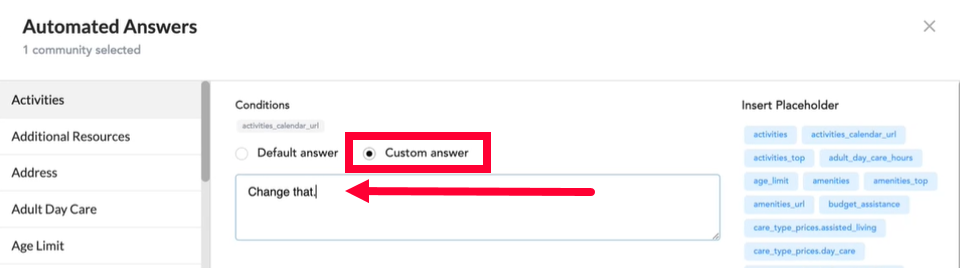
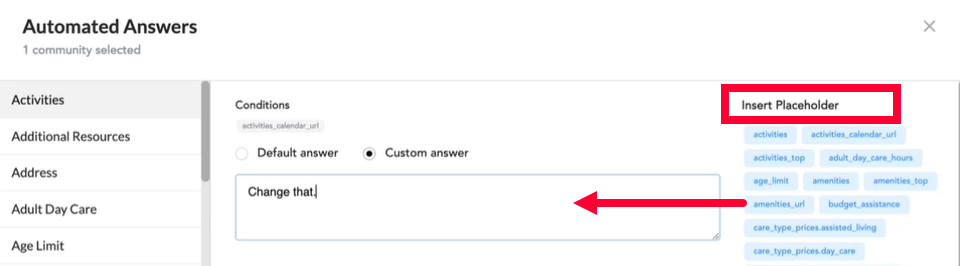
- Custom answer - This allows you to enter custom text in the field below. You can also add placeholders from the Insert Placeholder section. Simply click on the desired placeholder and then paste it into the text field to use it.
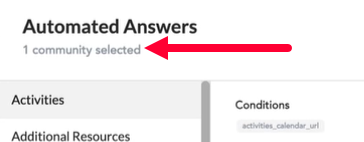
You can see a count of the communities that will be affected by your change in the top right.
When you’re done, click Save to keep your changes. The changes will apply to all selected communities.
Restore All Answers to Default
If you want to revert all answers in the selected communities to the default answers, click Restore Default Answers in the bottom left corner of the Automated Answers window.