UK - Further Script Installation Instructions
Last updated: June 11, 2026
Further's tools work by installing scripts on your website. The first step is to install the scripts on your website. After the scripts have been installed, you can contact Further support or your customer success manager to set everything live.
It is normal to see 404 errors in the browser console when the script has been installed until the tool(s) are set live in the Further system.
There are two ways to add the necessary script to your website:
Note: Only Member users can access the Further scripts necessary to begin install.
Inside Website HTML
To add the script directly inside your website's HTML, you will need to repeat this process for each community website. You can run this on specific webpages or all webpages… anywhere you want the tool(s) to show.
Pros
- Faster start (no GTM “middle step” before the script is requested)
- More reliable/consistent loading (not dependent on GTM firing)
- Less affected by GTM misconfig, unpublished changes, or container errors
- Often easier to approve for strict security teams than “running code via a tag manager”
Cons
- Requires developer work to add/remove/change
- Harder to manage across multiple sites/domains (repeat the change everywhere)
- Less flexible page targeting/exclusions unless you add conditional logic
Access the HTML of your community website. Locate the tag. Paste the following before the closing body tag :
Via Google Tag Manager
Pros
- Quick to launch and iterate (no code deploy)
- Very flexible targeting (all pages, specific paths, exceptions, environments)
- Easier centralized management if the same GTM container is used across properties
- Built-in versioning + rollback in GTM
- Lets marketing/analytics teams manage without dev involvement (if they own GTM)
Cons
- Usually slower to start loading (GTM must load, then triggers run, then script injects)
- More failure modes: GTM not loading, not published, trigger rules wrong, tag sequencing issues
- More affected by consent/CMP setups that delay tags
- More likely to be blocked by ad/privacy tools (can reduce coverage)
- Container bloat (many tags) can add overhead and unpredictability
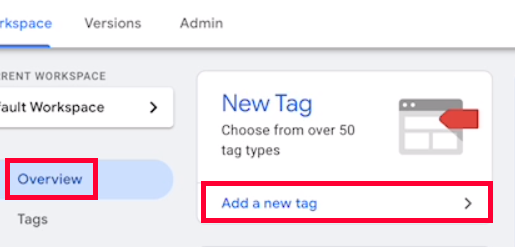
Open up your Google Tag Manager Workspace. In the Overview section click the Add a new tag button.
Click the Tag Configuration section.
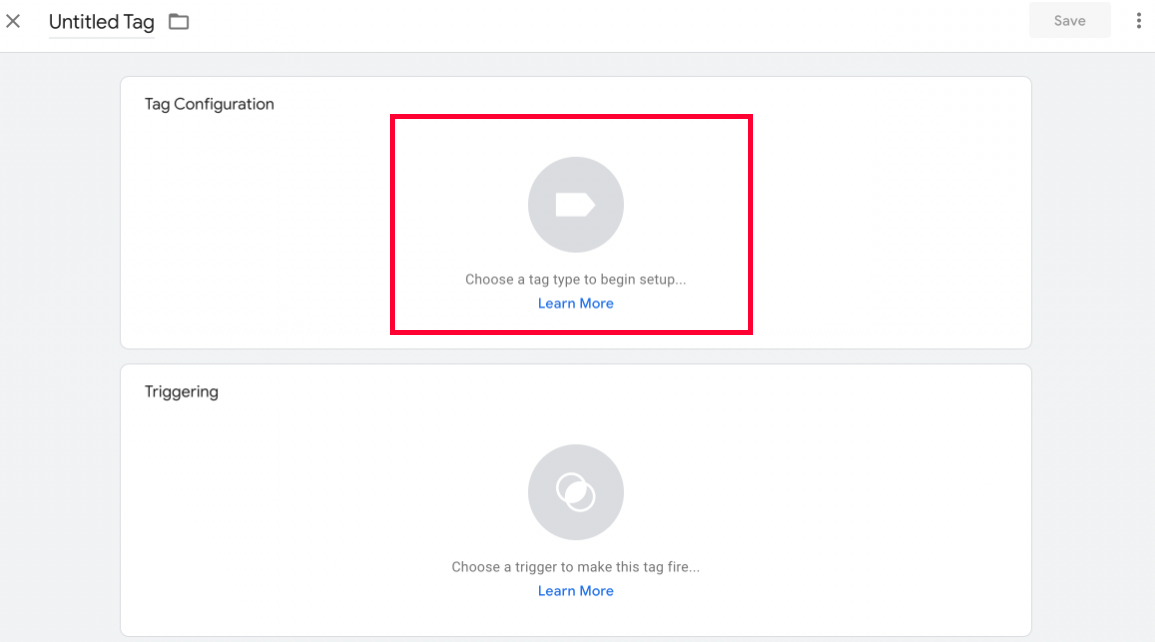
Click the Tag Configuration section.
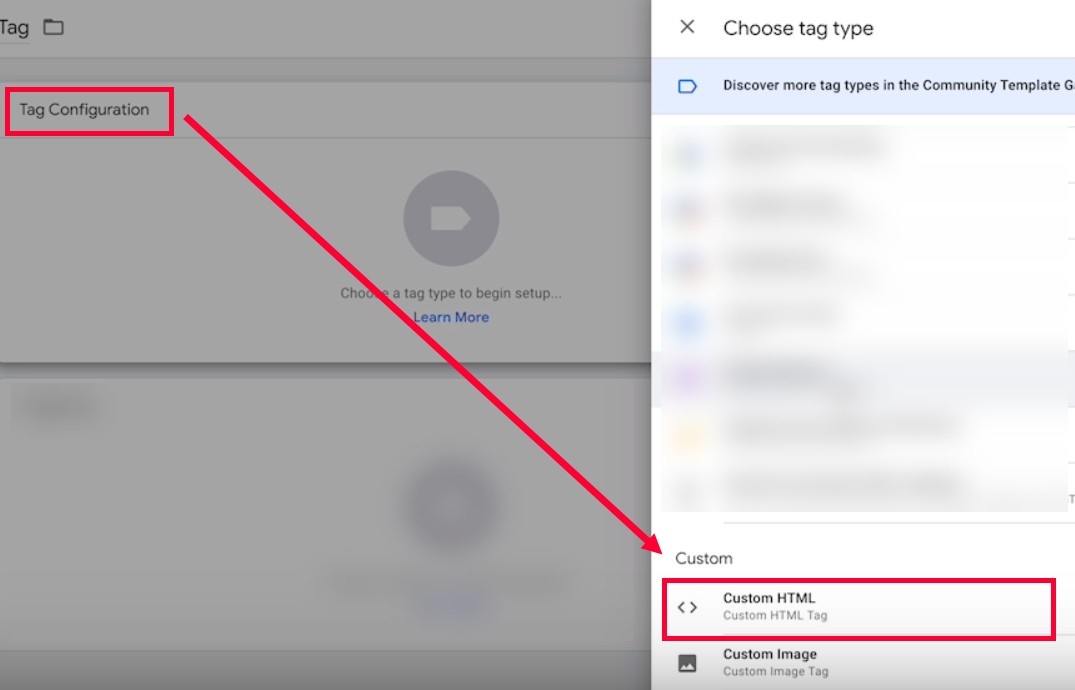
A panel will open on the right. Scroll down and click Custom HTML.
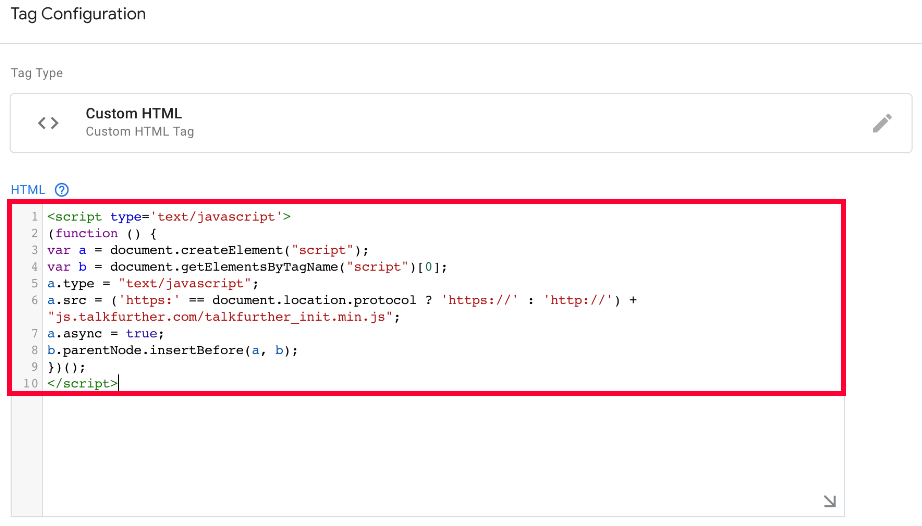
Paste the following script into the HTML box:
Scroll down and click the Triggers section.
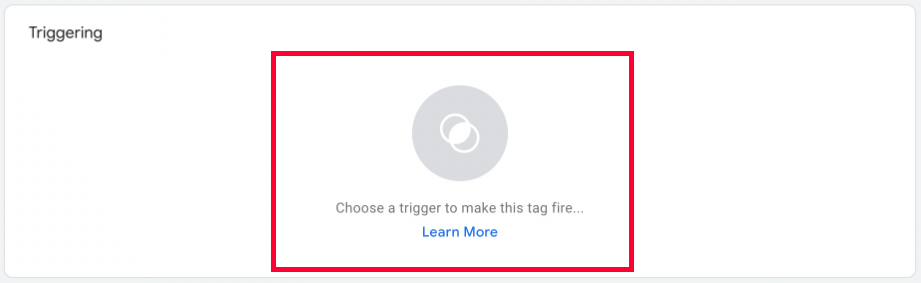
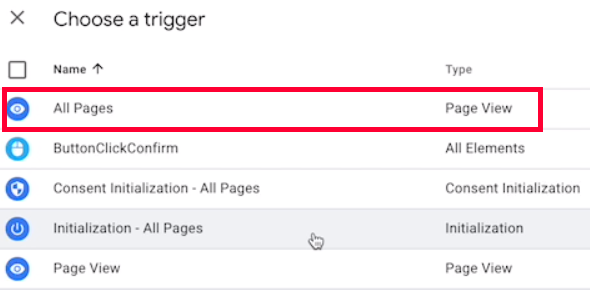
In the popup click All Pages - Page View.
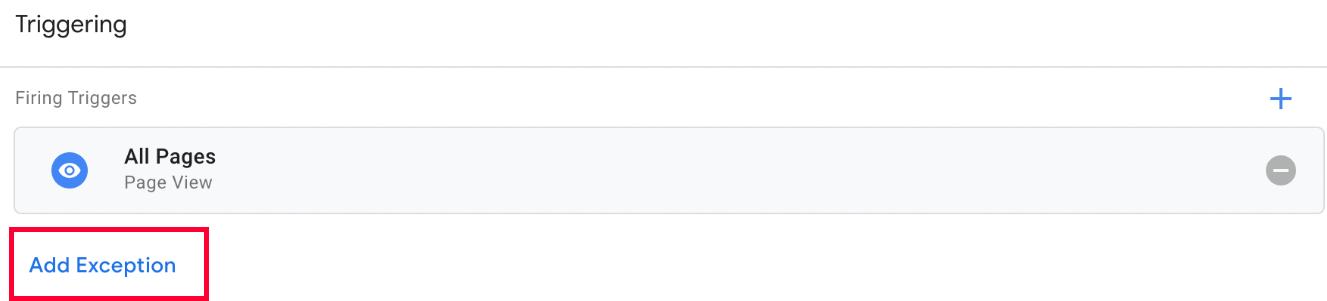
Note: Don’t want the tag to trigger for certain pages? Click Add Exception underneath the Firing Triggers. Add a Selected Page - Page View that includes any pages you don’t want the VSA to appear on.
When you’re done, click Save in the top right.
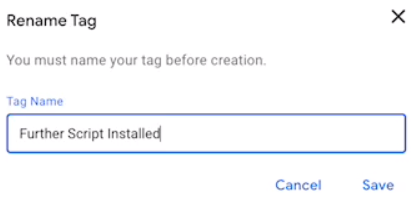
You’ll be prompted to rename the tag. Name the tag something descriptive like Further Script Installation.
Click Save when you’re done.
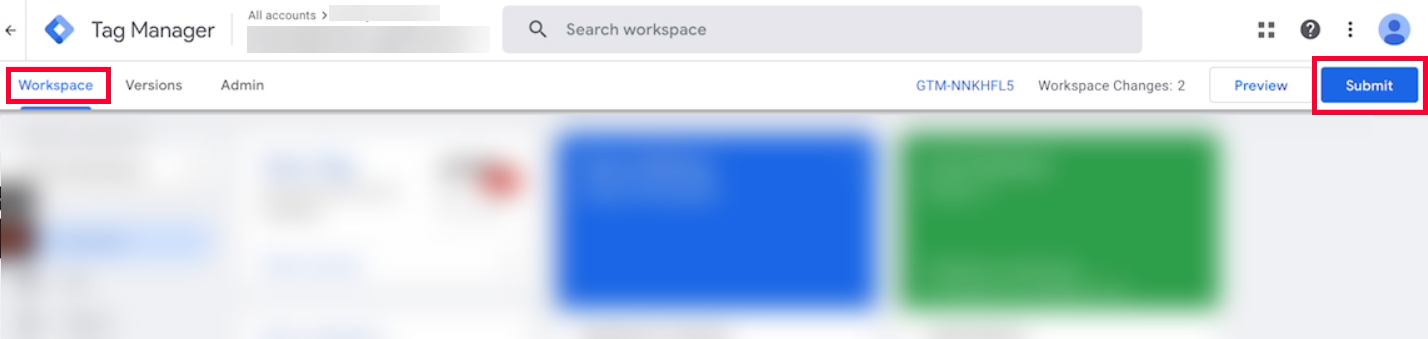
To apply your changes, click Submit at the top right of the Workspace.
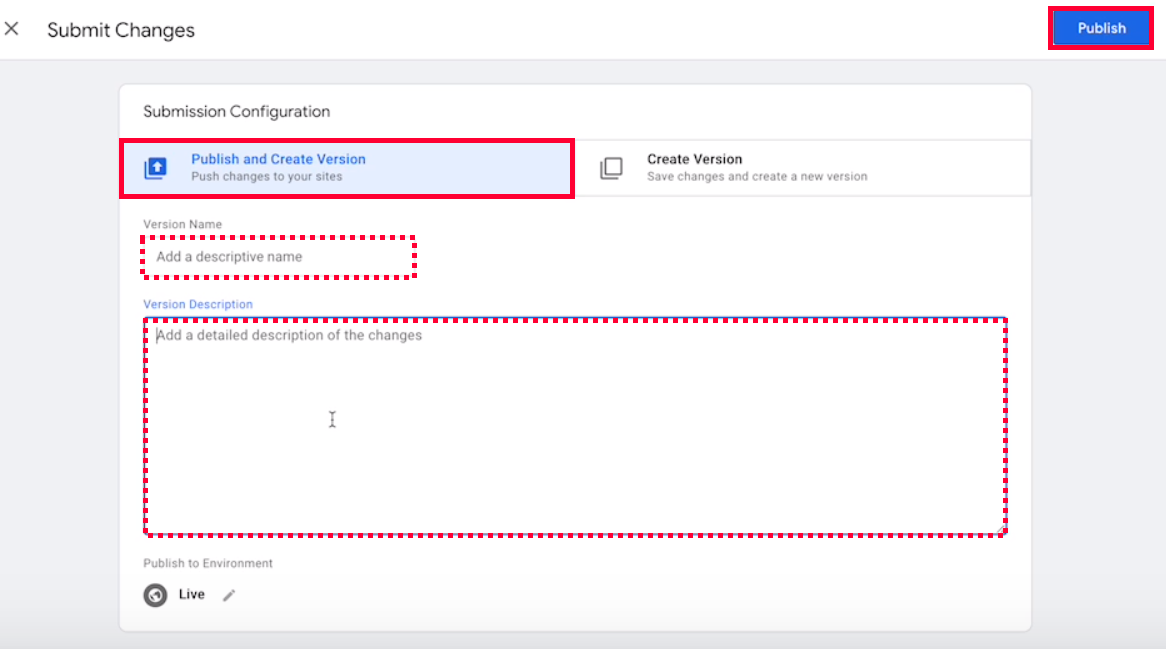
If you want, add a Version Name and Description for your changes. Click Publish in the top right to make the changes live on your site.
Further will be able to confirm if the script has been added and added properly.
NitroPack / Nitro CDN optimization conflicts
Further loads by inserting our talkfurther_init.min.js file into the page (either directly in the site’s HTML or via GTM). NitroPack can speed up sites by caching pages and optimizing JavaScript - but those same optimizations can sometimes interfere with how our script loads.
What can go wrong
-
Further loads twice (duplicate install)
- Nitro (or a Nitro partner) preloads or injects our script, and then GTM or the site loads it again.
-
Further loads too late (delayed install)
- Nitro may delay GTM or third-party scripts until user interaction (scroll/click) or until after the page is “idle.”
- Result: the chat may appear late or only after interacting with the page.
-
Further doesn’t load at all (broken install)
- Nitro may rewrite, defer, combine, or otherwise “optimize” JavaScript in a way that changes execution order or blocks required requests.
- Result: the widget fails to initialize or behaves inconsistently across refreshes/devices.
-
Changes don’t show immediately (cached pages)
- If the Further install is added/changed via GTM, Nitro may continue serving a cached page version that doesn’t reflect the update right away.
- Result: the site appears unchanged until cache expires or is refreshed; to see updates immediately, the Nitro cache must be purged.
Best practice
To avoid issues, site admins should exclude Further scripts from Nitro optimization